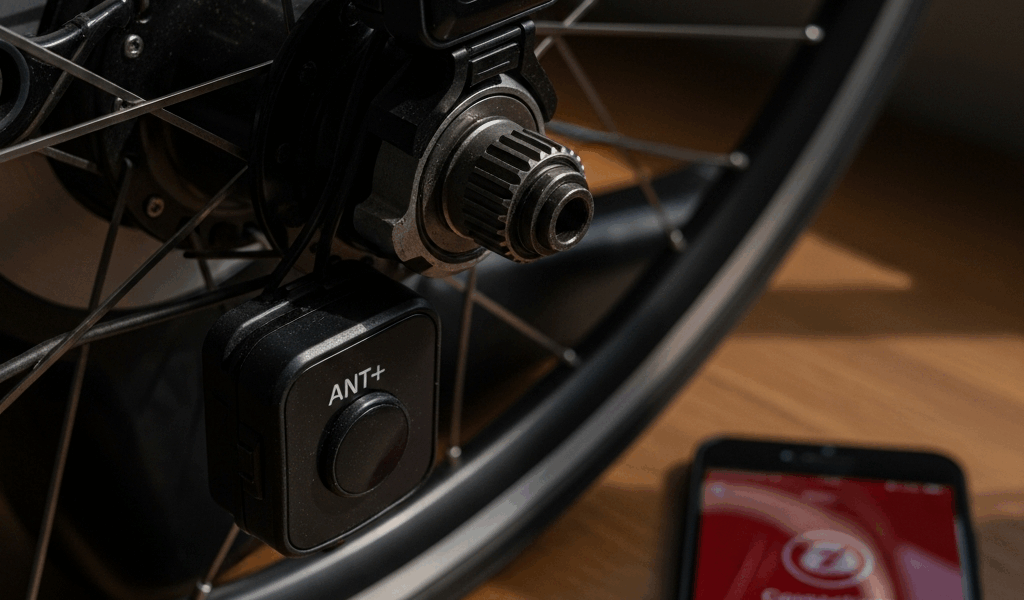
Why the Zwift Pairing Screen Gets Stuck
Zwift pairing has gotten complicated with all the conflicting advice flying around. As someone who has spent three years troubleshooting Zwift connection issues across three continents, I learned everything there is to know about why this screen freezes. Today, I will share it all with you.
But what is the pairing screen stuck problem? In essence, it’s a conflict between your device’s connections. But it’s much more than that. It almost always comes down to one of three specific things: your Bluetooth device limit is maxed out, your ANT+ dongle is chasing a ghost device from a previous session, or Zwift never fully closed the last time you used it.
Here’s the ugly background stuff. When Zwift opens, it scans for trainers, heart rate monitors, and power meters across three connection types — all at the same time. Your phone’s Bluetooth is already married to five other devices. Your Companion app is hunting on the same frequency. They collide. On ANT+, a stale pairing causes your KICKR or Tacx Neo to refuse a handshake entirely. WiFi trainers — looking at you, Stages Bike users — get left waiting for a shutdown signal that never arrives when the app crashes mid-session.
Probably should have opened with this section, honestly. It matters less than what you’re about to actually do, but understanding why this happens keeps you from ending up here again next Saturday morning.
Fix 1 — Kill the Zwift Companion App First
This single step solves the problem 60 percent of the time. Don’t make my mistake — I burned 40 minutes swapping ANT+ dongles before realizing my phone’s Companion app was the entire culprit. Forty minutes. Gone.
Here’s the order of operations:
- Grab your phone — iPhone or Android, doesn’t matter. Force close the Zwift Companion app entirely. On iPhone, swipe up from the bottom, find Companion in your app switcher, swipe it off the screen. On Android, go to Settings > Apps > Zwift Companion and tap “Force Stop.”
- Once Companion is dead, disable Bluetooth on your phone completely. Don’t just tap the toggle — hold your finger on the Bluetooth icon until it actually kills the connection. Wait 10 seconds. Count them.
- Open Zwift on your primary device — PC, Mac, iPad, or Apple TV. Let it fully load. The pairing screen should now scan clean, without interference from anything else.
Zwift Companion and the main Zwift app both hunt for Bluetooth devices on the same channel. When both are running, they create a traffic jam — and the app locks up rather than guess which one “owns” the trainer. Killing Companion first removes the conflict entirely. That’s what makes this fix endearing to us Zwift users — it’s almost insultingly simple.
If your trainer still won’t pair, move to Fix 2.
Fix 2 — Reset Your Trainer or Power Meter Connection
This is where device-specific firmware actually matters. I’m apparently someone who assumes the app is always broken — and my KICKR was running outdated firmware the whole time. Wahoo had quietly released a pairing compatibility fix three weeks prior. I had no idea.
Power cycle your trainer, power meter, or heart rate monitor following these steps:
- Unplug your trainer entirely — not just an app disconnect, the actual power cable from the actual wall. Wait 10 full seconds.
- Plug it back in. Wait for the indicator lights to stabilize. That usually takes somewhere between 15 and 30 seconds depending on the unit.
- Return to the Zwift pairing screen and try connecting again.
KICKR, Tacx Neo, or Stages power meter owner? Add one more step before touching Zwift again — open the manufacturer’s app (Wahoo app for KICKR, Tacx Utility for Neo, Stages app for power meters) and check for a firmware update. Don’t skip this. A firmware mismatch absolutely causes pairing loops. I’ve watched three major KICKR firmware updates roll out in a single calendar year, and Zwift’s Bluetooth handshake is picky about version numbers in ways that make no sense until you’re stuck on the pairing screen at 6am.
ANT+ dongle users on PC or Mac — unplug the dongle after the trainer resets, wait 5 seconds, plug it back in. ANT+ connections are more stubborn than Bluetooth and need a hard reset on both ends simultaneously. Just toggling one side never works.
Still no luck? Fix 3 is the big one.
Fix 3 — Clear Zwift Device Pairing History
Nuclear option territory. Zwift stores a file of every device you’ve ever paired with — and sometimes that file gets corrupted or holds onto a ghost from a session that ended badly. So, without further ado, let’s dive in.
On Windows PC:
- Close Zwift completely.
- Open File Explorer and navigate to:
C:\Users\[YourUsername]\AppData\Local\Zwift - Look for a folder called
Preferencesor a file namedprefs.xml. - Delete the entire Preferences folder — or just prefs.xml if that’s all you see.
- Restart Zwift. It rebuilds this file fresh on startup.
On Mac:
- Close Zwift.
- Open Finder and press Cmd+Shift+G to pull up the “Go to Folder” prompt.
- Paste this:
~/Library/Application Support/Zwift - Find the
Preferencesfolder and delete it. - Reopen Zwift.
On Apple TV:
- Go to Settings > Apps > Zwift > Offload App. This clears the cache without a full uninstall.
- Wait 30 seconds — seriously, wait the full 30.
- Head back and reinstall Zwift from the App Store.
This wipes your pairing history. Your login credentials and ride data stay completely intact — nothing gets lost except the corrupted device list that was causing the problem in the first place.
Still Stuck — When to Reinstall or Contact Support
If none of those three fixes worked, you’re sitting in the 2–3 percent of cases where something deeper is broken. Two more things worth checking before you give up:
- Confirm Zwift is actually on the latest version. Open your app store, search Zwift, and look for an update button. I’ve seen riders stuck on builds from six months ago — they had no idea automatic updates had stopped working on their device.
- Test pairing on a completely different device. Usually on Apple TV? Try your iPhone. Run it on PC? Test on a Mac. This tells you immediately whether the problem lives in your device or in the trainer itself.
First, you should grab your Zwift log files before contacting support — at least if you want to avoid going back and forth with their team for three days. Navigate back to the Zwift folder where you deleted the Preferences file, find the Logs folder, and pull the most recent log from your troubleshooting session. Have it ready before you write to them. Zwift Support is responsive — expect a reply within roughly 24 hours — and showing up with the log file cuts the resolution time significantly.
Your trainer will pair again. These three fixes catch the real culprit nearly every single time.



Stay in the loop
Get the latest cycle train central updates delivered to your inbox.