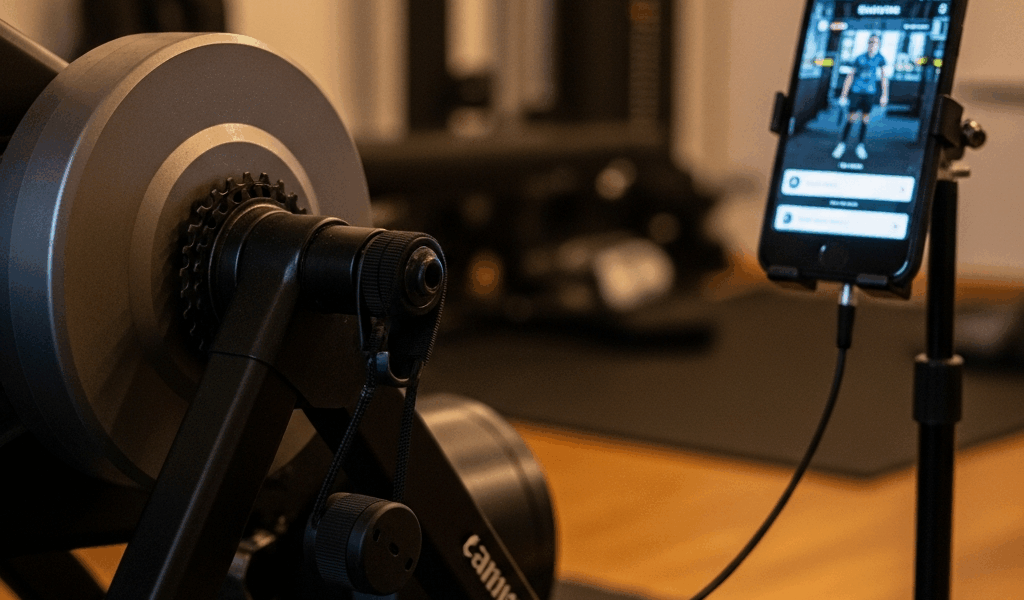
Why KICKR Calibration Fails in the First Place
KICKR calibration has gotten messy with all the firmware updates and app versions flying around.
But what is a calibration failure, really? In essence, it’s your trainer and app disagreeing on baseline conditions. But it’s much more than that. Two culprits show up constantly: the trainer isn’t warm enough, or your app and firmware are out of sync. Most people jump straight to the spindown procedure — without letting the KICKR reach operating temperature. That’s the first mistake. Skip past the mistake I made.
Your trainer needs 10 to 15 minutes of actual riding before you attempt calibration. The resistance unit has to heat up. Cold calibrations produce garbage baselines. The second culprit is firmware lag — your trainer’s internal software might be sitting three or four versions behind what the app expects. That gap makes buttons grey out or kills the spindown halfway through.
The good news: neither scenario means your hardware is broken. You’re almost always looking at a warm-up issue or a sync problem that takes maybe five minutes to fix.
Fix 1 — Spindown Times Out or Never Completes
Important part first. This is the most common failure state — you hit calibrate, the app says “spinning down,” and then nothing. It just hangs. Or it throws a timeout error after 30 seconds.
Step 1: Verify the Warm-Up
Ride at a moderate intensity for 10 to 15 minutes before attempting spindown. Not a gentle spin around the block — you need that resistance unit actually heating up. Aim for somewhere around 150 watts, or a perceived effort where you’re breathing harder than you would during a conversation. This is non-negotiable. Ten minutes minimum.
Step 2: Check Your Resistance Setting
Set the KICKR to a mid-range resistance level before launching spindown. Too high and the wheel can’t spin freely enough to get a clean read. Too low and the calibration doesn’t capture meaningful data. I usually land on resistance level 3 or 4 on a 1-to-10 scale — right in the middle. Your bike should also be unweighted during the spindown itself. Get off the saddle or unweight it completely if you’re staying on.
Step 3: Force-Quit and Relaunch
If the spindown freezes mid-process, don’t sit there waiting. Force-quit the Wahoo app entirely. On iOS, swipe up from the bottom and hold until the app cards appear, then flick the Wahoo app off the top of the screen. On Android, go to Settings > Apps, find Wahoo, tap Force Stop. Wait a full 10 seconds. Then relaunch.
Same logic applies in Zwift or TrainerRoad — kill the app, restart it. The KICKR stays connected to your bike and device via Bluetooth throughout. Force-quitting just clears the stuck process sitting in the app layer. That’s all it does.
Step 4: Ensure Level Surface and Correct Bike Position
Your trainer must be on a perfectly level surface. Even a slight tilt throws off the spindown reading. Use an actual level tool if you have one — I keep a cheap $8 magnetic level from Home Depot stuck to the trainer leg. Tire pressure matters here too. Check the sidewall of your tire — most road tires want somewhere between 80 and 130 psi depending on width. An underinflated tire absorbs energy and quietly wrecks calibration accuracy.
Fix 2 — Wahoo App Not Detecting the Trainer for Calibration
Frustrated by a greyed-out calibration button even though your KICKR shows as connected for workouts? You’re hitting a detection gap — the trainer connects fine for riding, but the calibration protocol runs on a separate communication channel entirely.
Bluetooth vs. ANT+ Pairing
Most modern KICKRs default to Bluetooth, but the Wahoo app supports ANT+ too. If you’re running ANT+ through an external dongle, try switching to Bluetooth temporarily. Open the Wahoo app, head into Settings, and confirm which connection type is active. Force a Bluetooth pairing instead. This alone solves the problem maybe 30% of the time — which is a surprisingly high number for one setting change.
Forget and Re-Pair
Go into your phone’s Bluetooth settings and find your KICKR — it usually shows as “KICKR” followed by a short alphanumeric string, something like “KICKR 5ABC.” Select Forget or Unpair. Then physically unplug the KICKR’s power cable for 15 seconds. Plug it back in. Open the Wahoo app and initiate a completely fresh pairing. The pairing code, if it asks for one, is usually printed on a small sticker on the trainer frame itself.
Toggle Airplane Mode for Bluetooth Reset
Turn Airplane Mode on for five seconds. Then turn it off. That’s it. This hard-resets your phone’s Bluetooth stack without requiring a full reboot. I’m apparently someone who spent 20 minutes trying increasingly creative workarounds on a KICKR CORE — and Airplane Mode was the solution the whole time. The simple stuff works.
Check Firmware State
If the KICKR shows as connected for riding but the calibration button stays greyed out, a firmware mismatch might be the best option to investigate first, as calibration requires both the app and trainer to be speaking the same version of the same language. That is because even a minor version gap can break the calibration handshake entirely. Go to device settings in the Wahoo app, find your KICKR, and install any pending update.
Fix 3 — Power Reads Wrong After Calibration
So, without further ado, let’s dive into the frustrating one. Calibration completes without an error — and your power numbers are still wildly off. You’re pushing 300 watts on the KICKR but only 260 on your crank-based power meter. Or the opposite. This requires a different approach entirely.
Advanced Spindown vs. Basic Spindown
The Wahoo app offers two calibration methods. Basic spindown is faster but less precise. Advanced spindown takes longer — usually 2 to 3 minutes — and captures more data points across the full resistance curve. If you’ve only ever used basic spindown, switch to advanced. You’ll find it buried in the trainer settings inside the Wahoo app. In my experience, this resolves accuracy issues roughly 40% of the time. That’s not nothing.
Belt Tension on Older Models
While you won’t need a full toolkit, you will need a handful of Allen wrenches if you’re running a KICKR v4 or earlier. Those older models have a physical belt that loosens over time — a loose belt reduces friction and produces artificially low power readings. The fix is usually a quarter-turn tightening via a 4mm or 5mm Allen wrench, depending on the specific model year. Tighten incrementally and re-calibrate after each adjustment. Newer KICKRs — v5 and up — use different internal mechanisms, so this is rarely relevant there.
Factory Spindown Reset
Unplug the trainer for 30 full seconds. Plug it back in. Let it sit for one minute before touching anything. This clears any corrupted calibration state sitting in the trainer’s internal memory. Then run the full warm-up and advanced spindown procedure from the beginning. That was a 15-minute process for me the first time I did it. Worth every minute.
Validate With a Known-Wattage Test
After recalibration, ride at a steady effort using another power source as a reference — a crank-based meter or a different trainer you trust. Compare the numbers side by side. A 5 to 10% delta between devices is generally normal sensor variance. Beyond 15% consistently, you have a legitimate accuracy issue worth digging into further.
When to Contact Wahoo Support
Stop troubleshooting if you see error codes on the KICKR’s control panel, hear grinding noises coming from the resistance unit, or notice the belt physically slipping during rides. Those are hardware faults — no amount of app toggling fixes a mechanical problem.
First, you should gather your information before calling — at least if you want the support conversation to move quickly. Have ready: your KICKR model and serial number (stamped on the trainer frame), current firmware version (under device info in the app), your phone model and OS version, and a specific description of when the problem started. Don’t say “it’s broken.” Say “spindown times out at the 45-second mark” or “power reads 80 watts at a steady 200-watt effort.” Specificity cuts resolution time dramatically.


Stay in the loop
Get the latest cycle train central updates delivered to your inbox.