Why Zwift Loses Your Cadence Sensor
Cadence sensor detection on Zwift has evolved with all the conflicting advice flying around.
But what is actually happening when Zwift drops your sensor? In essence, it’s a timing and protocol mismatch. But it’s much more than that. There are really two failure modes worth understanding. The first: your sensor broadcasts on both ANT+ and Bluetooth simultaneously, and Zwift grabs the wrong signal — or drops it entirely mid-ride. The second: Zwift’s pairing screen times out before your sensor even wakes up. You end up staring at a spinning loader that never resolves. Not fun. The fix depends entirely on which connection type is causing the grief.
Before blaming Zwift, understand something. Your cadence pod is a low-power device. It sleeps between rides. It doesn’t advertise itself constantly. Zwift’s pairing window has a hard timeout. These two facts collide regularly. Nearly every failure has a simple fix, though, once you pin down the actual culprit.
Check Your Connection Type First
Quick note before the rest of this. Most people skip this step entirely, which is exactly why they end up re-pairing sensors fifty times and getting nowhere.
Your cadence sensor connects via ANT+ or Bluetooth. Some do both. Zwift on Windows and Mac handles either protocol. Zwift on iOS and Apple TV? Bluetooth only — full stop. Any ANT+ capability on your sensor becomes completely irrelevant if you’re riding on an iPad.
Grab your sensor’s manual or pull up the manufacturer’s website. Wahoo RPM pod? Dual ANT+ and Bluetooth. Garmin cadence pod? Also dual protocol. SRM Powercontrol? ANT+ only. Write that down — you’ll need it.
On Windows or Mac, open the Zwift pairing screen and look carefully. Sometimes Zwift lists two entries for the exact same sensor with slightly different names — one labeled ANT+, one labeled Bluetooth. I’m apparently wired to always click the first one I see, and that never works for me while the correct protocol sits right below it. Save yourself the trouble I had. Note the exact name and protocol showing up. That’s your diagnostic baseline.
Step-by-Step Fix for Bluetooth Cadence Sensors
Bluetooth failures happen most often because something else already grabbed the connection. So, without further ado, let’s dive in.
- Before opening Zwift, go into your device’s Bluetooth settings and forget the cadence sensor entirely. Clearing that old pairing removes ghost connections — the kind that block new ones from establishing properly.
- Close Wahoo or Garmin Connect if either is running. These apps actively hunt for your sensor and will snatch the Bluetooth signal the moment it broadcasts. I learned this the hard way after twenty minutes wondering why Zwift couldn’t find my RPM pod. The Wahoo app was sitting open in the background the whole time. That was embarrassing.
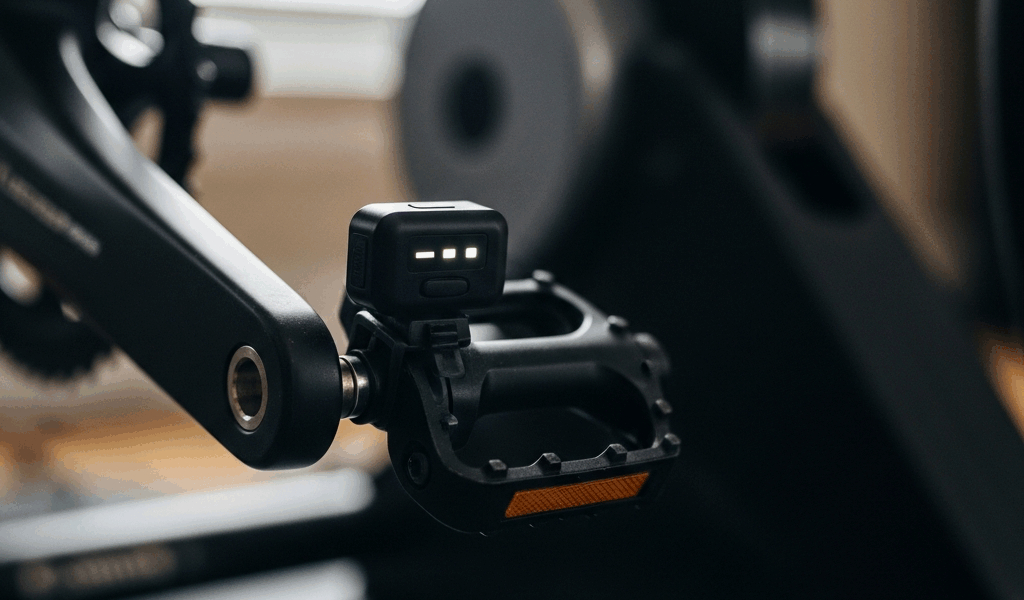
- Physically spin the crank or pedal attachment by hand a few times. Most cadence sensors wake on motion. No motion, no signal. Simple as that.
- Now open Zwift and navigate to the cadence pairing screen. Hit the rescan button and watch for your sensor name to appear. The moment it shows up, tap it immediately — don’t wait. The pairing window typically closes after around 30 seconds.
- After pairing successfully, pedal right away. Some sensors drop the Bluetooth connection if they don’t detect sustained cadence data within the first few seconds of pairing.
Still not showing up? Restart your device entirely. A full restart clears Bluetooth stack issues that quietly block fresh pairing attempts.
Step-by-Step Fix for ANT+ Cadence Sensors
ANT+ might be the best option for desktop setups, as Zwift on Windows requires reliable signal continuity. That is because ANT+ handles multiple simultaneous device connections more cleanly — but it comes with physical placement quirks that’ll drive you insane if you ignore them.
- Position your ANT+ USB dongle within one meter of where your bike sits during the ride. ANT+ has genuinely poor range in typical home environments — walls, metal trainer frames, and even nearby electronics chew through the signal.
- Use a USB extension cable to bring the dongle closer. I run mine on a two-meter cable — $7.99 on Amazon, model AmazonBasics USB 2.0 — positioned directly beside my trainer. That single move eliminated roughly half my ANT+ headaches.
- Check whether other ANT+ devices are competing nearby. ANT+ shares frequency channels, and Zwift on Windows handles simultaneous ANT+ connections imperfectly. Power meter, heart rate strap, speed sensor, and cadence sensor all active at once? Your cadence pod becomes a fourth contender for limited bandwidth. It usually loses.
- Even if you’ve paired the sensor before, hit the refresh or rescan button in Zwift’s pairing screen. Zwift forgets ANT+ connections — especially after app updates. Don’t assume anything is remembered.
- Spin the crank before searching. Same rule as Bluetooth. The sensor needs motion to wake up and broadcast.
ANT+ failures are almost always about physical placement, not software settings. Move the dongle first before touching anything else.
Still Not Working — Last Resort Fixes
Replace the battery. Seriously, do this before anything else on this list — I just buried it here because nobody reads the obvious stuff first. Most cadence sensors run on a CR2032 coin cell. A fresh one costs about $2 at any drugstore. Low voltage causes detection failures that look identical to connectivity problems. Swap it out and retest before going further.
If you’re on Mac or Windows and Bluetooth still isn’t cooperating, install the Zwift Companion app on your phone. Companion acts as a Bluetooth bridge — pair your sensor there, then open Zwift on your PC with Companion running in the background. The two apps talk to each other over your local Wi-Fi network. It’s a workaround, yes, but it completely bypasses direct computer-to-sensor Bluetooth issues. Works consistently.
Check firmware updates while you’re at it. Open the Wahoo or Garmin app, search for updates on your specific sensor, and install anything available. Cadence sensors rarely need firmware updates — but outdated firmware occasionally breaks compatibility with newer Zwift versions. Takes two minutes to rule out.
If none of these work, contact Zwift support with your sensor name and protocol type written down ahead of time. One of the steps above will fix it. It always does.




Stay in the loop
Get the latest cycle train central updates delivered to your inbox.