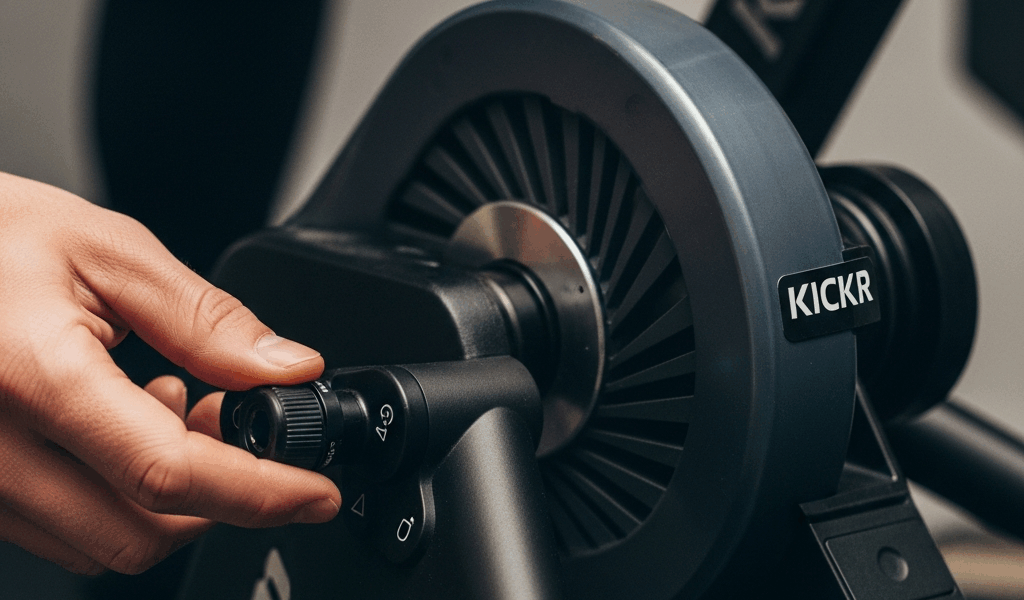
What It Feels Like When Resistance Stops Working
Zwift resistance on a KICKR has become tricky with all the conflicting advice flying around.
Picture this: you’re grinding up an 8% grade in Watopia. The power meter is ticking along. Cadence looks normal. But your KICKR — your actual, physical trainer — feels identical to how it felt on the flat two minutes ago. Zwift says you’re climbing. Your legs say you’re lying on the couch.
But what is this problem, exactly? In essence, it’s the trainer hardware refusing to physically adjust its resistance when the app tells it to. But it’s much more than that — it’s the gap between what the software thinks is happening and what your body actually experiences, and it can come from half a dozen different places.
The symptom shows two main flavors. In sim mode, climbs feel completely flat. Descents don’t ease off. Resistance locks in place — usually wherever your wattage happened to land — and ignores every gradient change Zwift throws at it. In ERG mode, the trainer never ramps to hit target watts. You finish a 200-watt block, the app calls for a 150-watt recovery, and your KICKR just sits there doing nothing. That’s what makes this issue so maddening to us Zwift riders — you can see the problem clearly, but you can’t immediately tell whether it’s the app, the device, or some invisible handshake failing between the two.
One thing worth naming upfront: this article covers the trainer not physically adjusting its resistance. Not whether Zwift is reading your power accurately. Not whether the device is pairing at all. Those are separate headaches entirely. So, without further ado, let’s dive in.
Start Here Before Anything Else
Worth flagging before going further. I’ve watched people spend a full hour recalibrating, reinstalling, and rebooting routers when the actual fix took about 30 seconds.
Check Your Connection Type
First, you should open the Wahoo Fitness app and check whether your KICKR is connected via Bluetooth or ANT+ — at least if you want resistance control to actually work. Then check what Zwift is using. These need to match. If Zwift is pairing over Bluetooth while the Wahoo app has quietly claimed the trainer via ANT+, Zwift reads your power but can’t send resistance commands. The KICKR has no idea Zwift is even talking to it.
Bluetooth might be the best option, as resistance control requires a clean, uncontested command channel. That is because Bluetooth hands control more reliably to whichever app is actively connected. ANT+ works great with a compatible USB dongle — rock solid, actually — but it adds a hardware dependency. Pick one protocol. Stick with it.
The Multiple Connection Killer
Close the Wahoo Fitness app before opening Zwift. Seriously. Having both apps connected to the same KICKR simultaneously is a guaranteed way to destroy resistance control. The trainer receives conflicting instructions, gets confused, and defaults to a flat, unresponsive state. Close one app. Open the other. Wait 10 seconds. Try again. Simple as that.
Check Your Firmware
Open the Wahoo Fitness app. Tap your KICKR. Look for a firmware version number — mine showed 4.2.3 the last time I checked. If an update is sitting there waiting, install it immediately. Stale firmware causes resistance to feel sluggish or completely dead. I’m apparently sensitive to firmware issues and updating works for me while ignoring updates never does. Don’t do what I did.
Fix the KICKR Itself — Calibration and Firmware
Frustrated by a morning where my resistance felt completely flat regardless of gradient, I ran a spindown calibration using the Wahoo Fitness app on my iPhone and the problem vanished in about six minutes.
Your KICKR does attempt to self-calibrate over time, but it’s not always accurate. Resistance accuracy quietly degrades without deliberate, manual calibration. A stale reading can cause the trainer to respond sluggishly — or not respond at all.
How to Calibrate Your KICKR
- Warm up for 10 minutes. Spin easy, nothing intense. This is non-negotiable — calibration on a cold trainer gives you corrupted data. I learned that the hard way after a completely useless spindown at 6am one January.
- Open the Wahoo Fitness app.
- Tap your KICKR device.
- Select “Device Settings” or “Trainer Settings.”
- Find “Spindown Calibration.” Tap it.
- Follow the on-screen prompts. You’ll coast down from a moderate cadence — roughly 22-24 mph on screen — without pedaling until the wheel stops. The app times the deceleration and recalculates the trainer’s power curve.
- When confirmation appears, restart Zwift completely.
That’s it. Five minutes, maybe six. The single most effective fix for the “resistance feels completely dead” problem.
Firmware Update Process
While you’re in the Wahoo Fitness app, tap Settings and look for “Firmware Update.” If one’s available — and on older KICKR V5 units especially, there usually is — plug the trainer into power, keep Bluetooth active, and let it run. Don’t close the app. Don’t interrupt it. Updates typically finish in five to ten minutes and occasionally fix resistance issues that nothing else touches.
Fix the Zwift Side — Trainer Difficulty and Pairing
On the Zwift side, two things consistently break resistance control: the Trainer Difficulty slider and incorrect device pairing. Both are invisible until you know where to look.
Trainer Difficulty Slider
Open Zwift. Go to Settings. Find “Trainer Difficulty” — it’s a slider running from 0 to 100. A shocking number of riders leave this at zero and genuinely forget it exists. At zero, resistance variation is nearly nonexistent. Climbs feel flat. Descents feel flat. Everything feels flat. That’s what zero does.
Set it to 50 or higher. Most experienced Zwift riders land somewhere between 50 and 100. Higher values push the trainer harder to match actual road grade. If you set this to zero six months ago and moved on, you’ve found your problem.
Re-Pair as a Controllable Trainer
This is the miss that catches almost everyone. Your KICKR needs to be paired twice inside Zwift — once as a Power Source so Zwift reads your watts, and separately as a Controllable Trainer so Zwift can actually send resistance commands back. These are two different connections. Most people only complete one.
From the Zwift home screen, go to Settings, then scroll to “Devices.” Under “Controllable Trainer,” select “Pair New Device.” Your KICKR should appear within a few seconds. Select it and wait for the confirmation checkmark. Then verify “Power Source” is also showing your KICKR — not a separate power meter, not “None.” If the Controllable Trainer slot reads “No Device Paired,” that’s your answer. Power is working. Control isn’t.
On mobile the process is identical: Settings > Devices > Controllable Trainer > Pair New Device.
Still Broken — When to Factory Reset or Contact Wahoo
Calibrated. Firmware updated. Trainer Difficulty set above 50. Re-paired as controllable. And your resistance still isn’t changing. Two options remain.
Factory Reset
Open the Wahoo Fitness app. Go to Device Settings. Find “Factory Reset” or “Reset to Defaults.” This wipes everything internally and starts the trainer from scratch — clean slate. After the reset finishes, run a spindown calibration immediately and re-pair in Zwift before doing anything else. A factory reset clears most stubborn software-level issues that survive everything else.
Contact Wahoo Support
While you won’t need to ship anything initially, you will need a handful of specific details ready before you reach out. Have your KICKR model (KICKR Core, KICKR V5, KICKR 2018, etc.), current firmware version, Zwift app version, connection protocol (Bluetooth or ANT+), and operating system. Windows, Mac, iOS, Android — all of it matters. That information cuts diagnosis time significantly.
In roughly 95% of cases, this is calibration or software, not a hardware failure. Your trainer is almost certainly fine. It just needs the right instructions in the right order.


Stay in the loop
Get the latest cycle train central updates delivered to your inbox.