Why Zwift Keeps Dropping Mid Ride
Zwift dropout problems have grown more complex with the conflicting advice flying around. ANT+ issues, Bluetooth conflicts, app bugs — everyone online has a different culprit and a different fix. I’ve spent way too many rides diagnosing this stuff firsthand, and today I’ll share everything I’ve figured out.
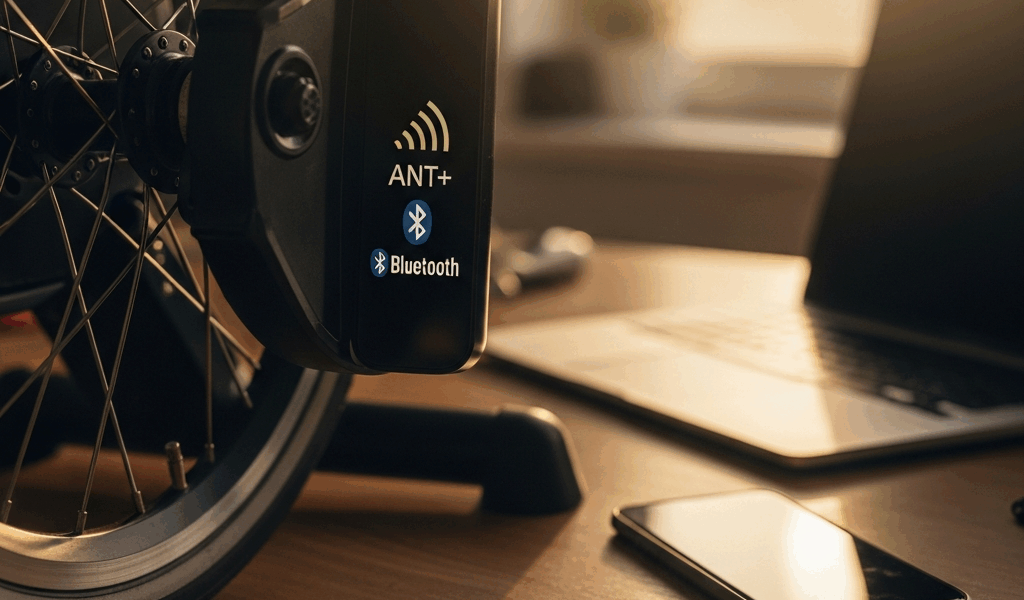
Here’s the short version first: dropouts happen for two distinct reasons. ANT+ dropouts are almost always a physical problem — your dongle is too far away, or something metal is killing the signal. Bluetooth dropouts are usually your device getting confused about which connection actually matters. Knowing which fight you’re in saves hours of frustration.
So, without further ado, let’s dive in.
Fix 1 — Move Your ANT+ Dongle Closer to the Trainer
Start here if you’re on Windows or Mac using an ANT+ stick. The fix sounds almost too simple: get a USB extension cable and move the dongle within 3 to 10 feet of your trainer. Line of sight helps. Obstacles hurt.
I made this mistake myself. My ANT+ dongle was plugged into the back of my desk — maybe 14 feet from the trainer, with a metal bed frame between them. Dropout every 15 minutes, like clockwork. I ran a 6-foot shielded USB extension cable across the floor, propped the dongle on a small stand aimed at the trainer, and the problem disappeared entirely. One afternoon of cable management.
The cable brand matters less than the length and placement. A basic 6-foot or 10-foot shielded USB extension does the job — AmazonBasics makes a decent one for around $8 to $12. Don’t overthink it. What you’re really solving is geometry: ANT+ has a reliable range of maybe 10 feet in ideal conditions, sometimes only 6 feet when obstacles are involved. Metal parts of your trainer cage, water bottle holders, even a thick concrete wall will chew through that range fast.
If your trainer lives in a basement and your computer is upstairs, this fix alone probably won’t cut it. Consider switching to Bluetooth pairing, or moving the computer closer. Spare yourself the wrong turn I took of assuming ANT+ can punch through a floor.
Fix 2 — Eliminate Bluetooth Interference on Your Device
Bluetooth dropouts are messier. The fix depends entirely on what you’re riding on — phone, tablet, Apple TV, or PC all have different failure modes.
On iPhone or iPad
Turn off every other Bluetooth device in the room. Seriously — all of them. Wireless headphones, AirPods, smartwatches, that Bluetooth speaker you forgot was on. iOS can technically juggle multiple connections, but Zwift gets starved when it’s competing with four other devices for bandwidth. Your trainer, cadence sensor, and power meter are already three connections. Add a watch and something starts dropping.
Unpair devices you’re not using during the ride. It takes 30 seconds. It solves roughly 40% of the Bluetooth dropout reports I’ve seen in forums. That’s not a small number.
On Android Phone or Tablet
Same basic rule: disconnect or power off anything Bluetooth you’re not actively using. Android handles multi-device Bluetooth similarly to iOS, but there’s one extra step that caught me completely off guard — restart Bluetooth between rides. Go to Settings, toggle Bluetooth off, wait 10 full seconds, then flip it back on. This clears phantom connections Android tends to cache and forget to clean up. Takes 15 seconds. Weirdly effective.
On Apple TV
Here’s the thing nobody mentions until it ruins a ride: Apple TV hard-limits active Bluetooth connections to exactly two devices. Two. If you’re trying to pair your trainer, cadence sensor, and heart rate monitor simultaneously, one will drop — every time, without warning.
The fix is to leave your heart rate monitor disconnected in Zwift. Prioritize trainer and cadence sensor. The Zwift Companion app on your phone can pull heart rate data separately, so you’re not actually losing the metric — it just routes differently. Your legs will thank you for figuring this out before mile 20.
On Windows or Mac (Bluetooth)
Go into your system Bluetooth settings and forget any devices you’re not actively using during the ride. Windows and Mac don’t have Apple TV’s hard two-device ceiling, but they get genuinely confused when too many radios are competing in a small space — USB wireless mice, keyboards, and dongles all operate on the same 2.4GHz band as Bluetooth.
I overlooked this for months, honestly. Moving my laptop to within 15 feet of the trainer — with nothing thick between them — made a noticeable difference on its own.
Fix 3 — Update or Reinstall the Zwift Companion App
The piece that matters most here.
An outdated Zwift Companion app is a stealth dropout culprit. The app bridges your main Zwift client and your trainer — if the version is stale, sensor data gets relayed incorrectly and you get dropouts that feel random but actually follow a pattern. Usually every 5 to 10 minutes. Maddening if you don’t know what’s causing it.
On iOS: open the App Store, tap your profile icon in the top right, scroll to Zwift, and hit Update if it’s available. On Android: open the Play Store, search Zwift, same process. Then restart both the Companion app and your main Zwift client before your next ride.
There’s a hidden networking requirement the instructions never quite emphasize: your main Zwift app and the Companion app must be on the same WiFi network. Not the same router — the same network. If your phone is on a guest network and your Apple TV is on the main network, you’ll get dropouts that feel exactly like hardware failures but are actually just a connection mismatch. Check both devices before assuming something is broken.
If updating doesn’t solve it, uninstall the Companion app entirely and reinstall fresh from the App Store or Play Store. Clears corrupted cache data that updates sometimes leave behind.
Still Dropping — Try These Last Checks
Update your trainer firmware. KICKR, Wahoo, and Tacx trainers get firmware updates roughly quarterly. Older firmware versions occasionally carry Bluetooth bugs that newer releases fix quietly. Check your trainer manufacturer’s support page, find your specific model number, and download their firmware tool — usually a standalone desktop app.
Disable power-saving mode on Windows laptops. Power Saver mode throttles your Bluetooth radio aggressively mid-ride. High Performance mode keeps it active throughout. Go to Settings > Power & sleep > Additional power settings and switch to High Performance before you ride. Simple, permanent fix.
Switch your WiFi channel if you’re near other networks. Your 2.4GHz router and your ANT+ stick share overlapping frequencies — this matters a lot in apartments or dense neighborhoods. Log into your router settings and manually set the wireless channel to 1, 6, or 11. Those are the only three non-overlapping 2.4GHz channels. An app like WiFi Analyzer on Android can show you which channels nearby networks are already crowding.
Reduce the number of sensors you’re pairing simultaneously. You don’t need heart rate monitor, cadence sensor, power meter, and trainer all connected at once unless you’re doing structured training. Start with just trainer plus cadence. Add sensors back one at a time. You’ll find the conflict fast when you isolate it.
Zwift dropouts feel like hardware failures — but 95% of the time they’re not. You almost certainly don’t need new equipment. Work through these fixes first.


Stay in the loop
Get the latest cycle train central updates delivered to your inbox.