Why the KICKR Drops Connection Mid-Ride
This article includes affiliate links. We may earn a commission at no extra cost to you.
KICKR connectivity has gotten complicated with all the conflicting advice flying around. As someone who spent three months troubleshooting dropouts across two different home setups, I learned everything there is to know about why this trainer goes silent mid-ride. Today, I will share it all with you.
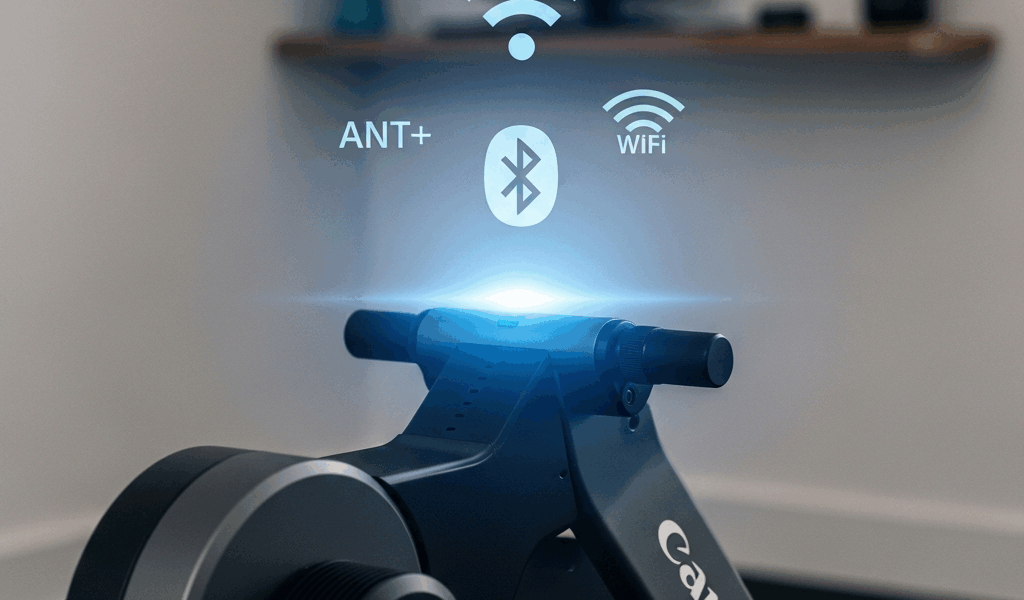
But what is a KICKR dropout, really? In essence, it’s your trainer losing its handshake with whatever device is controlling it. But it’s much more than that — it’s a symptom pointing at one of three distinct systems: Bluetooth, ANT+, or WiFi. Each one fails differently. Bluetooth tends to choke on interference and pairing conflicts. ANT+ almost always comes down to dongle placement or USB power. WiFi problems trace back to band selection, firmware mismatches, or a home network already gasping under load.
Here’s the thing most people miss: probably 90% of these dropouts aren’t hardware failures at all. The environment is doing it. So, without further ado, let’s dive in.
Fix Bluetooth Dropout on the KICKR
Bluetooth is convenient. It’s also fragile in ways that took me an embarrassingly long time to understand. Your phone, your Apple Watch, your earbuds, your partner’s laptop — all of them are screaming for airtime on the 2.4 GHz band simultaneously. The KICKR’s radio has to elbow through that crowd every single minute you’re riding.
Start here — at least if you want to actually solve this before your next workout:
- Kill Bluetooth on every device except the one running your training app. The watch, the speaker in the corner, your old phone sitting on the shelf — all of it. The KICKR pairs with one device at a time, and competing signals wreck the connection even when nothing else is actively connected.
- Unpair the KICKR entirely. Don’t just disconnect it — remove it from your Bluetooth settings completely. On iPhone: Settings > Bluetooth, tap the info icon next to the KICKR, hit “Forget This Device.” Android users: Settings > Connected Devices > Bluetooth, tap the gear icon beside the KICKR, select “Unpair.” Fresh slate.
- Unplug the KICKR from power for a full 30 seconds. This clears its Bluetooth memory. Not 10 seconds. Thirty.
- Power it back on and re-pair from scratch. A clean handshake fixes phantom dropout more often than anything else on this list.
Still cutting out? Check your Bluetooth driver. My MacBook Pro was running firmware two versions behind and dropped the KICKR like clockwork every 8 to 10 minutes — until I updated to the latest macOS. That was a $0 fix taking five minutes. Windows users should open Device Manager, expand the Bluetooth section, right-click the adapter, and check for driver updates. I’m apparently the last person to figure this out, and the MacBook’s built-in Bluetooth update process works while the KICKR stays on. Don’t make my mistake of ignoring drivers for months.
Keep your device within 10 meters of the trainer — ideally line of sight. Bluetooth struggles through walls, struggles around metal frames, and completely gives up if you wander into another room. I learned that positioning my laptop in the kitchen while the KICKR sat in the garage was, predictably, a terrible idea.
Fix ANT+ Dropout on the KICKR
ANT+ is more stable than Bluetooth. Fewer devices competing, cleaner signal. That’s what makes ANT+ endearing to us cyclists who’ve been burned by Bluetooth one too many times. But dongle placement will still ruin your ride if you ignore it.
The ANT+ USB dongle — the little Wahoo or Garmin stick, usually around $40 — needs to sit within one meter of the KICKR. Not approximately one meter. Not “it’s probably fine from my desk across the room.” One meter. I ran a 1-meter USB extension cable, model UGREEN US168 for around $7.99, and zip-tied the dongle to a mic stand positioned directly behind the rear axle. Zero dropouts since. That’s what fixed it.
USB port conflicts are sneaky and worth checking next. Plug the ANT+ dongle into a hub shared with an external hard drive or a USB-C dock and you’re asking for power starvation — the dongle doesn’t get enough juice, the KICKR cuts out mid-interval. Fix this by moving the dongle to a native USB port on the laptop itself. If you’re running a powered hub, use it — but not a daisy-chained one. Those add latency and electromagnetic noise that cheap hubs make worse.
Probably should have opened with this section, honestly. Garmin watches, certain power meters, other Wahoo devices — they all use ANT+. Put three or four ANT+ gadgets in the same room and they start stepping on each other’s signals. Power down whatever you’re not actively using during the workout. Simple fix, easy to overlook.
Fix WiFi and App Sync Issues on the KICKR
WiFi on the KICKR connects through the Wahoo app directly — and honestly, it’s the least stable option of the three. Most riders don’t need it. If you’re using Zwift, TrainerRoad, or any third-party app, those communicate via ANT+ or Bluetooth, not WiFi. Dropout there? Scroll back up. But if the Wahoo app itself is your connection point and WiFi is involved, here’s what actually works.
First, check your router’s band setup. Most home routers broadcast both 2.4 GHz and 5 GHz. The KICKR technically handles both, but 2.4 GHz might be the best option, as the trainer requires stable range through walls and floors. That is because 2.4 GHz penetrates physical obstacles better than 5 GHz, which trades range for raw speed. Log into your router — usually 192.168.1.1 in a browser — and confirm the KICKR is on the 2.4 GHz band. If your router combines both bands under one SSID, disable 5 GHz temporarily to force the assignment.
Firmware mismatches cause more sync dropout than people expect. Update both the KICKR firmware and the Wahoo app before assuming anything else is broken. In the Wahoo app: Settings > Devices > KICKR > Firmware. Run the update while the trainer is plugged into power and within Bluetooth range. Then update the app through your phone’s app store. Do both. In that order.
This new idea of static IP assignment took off several years later and eventually evolved into the network stability trick enthusiasts know and swear by today. In your router settings, find the KICKR’s MAC address — listed in the Wahoo app under device info — and assign it a fixed IP instead of letting DHCP reassign it during a ride. Mid-workout reconnection delays often trace back to a lease renewal happening at exactly the wrong moment.
Still Dropping Out — Try These Last Resort Fixes
Worked through all three systems and still dropping? You’re in the narrow category of serious environmental interference or an actual hardware issue. Rare, but real.
Factory reset the KICKR first. Unplug it, wait a full 60 seconds, plug it back in, and hold the power button for 10 seconds until the indicator lights flash in sequence. This wipes paired devices and Bluetooth history completely. Set it up again from scratch — same as new out of the box.
While you won’t need to reinstall your entire operating system, you will need a handful of steps to fully clear corrupted app data. Delete the Wahoo app entirely, restart your phone, then reinstall fresh from the App Store or Google Play. Corrupted cache causes phantom behavior that no amount of reconnecting will fix.
If none of that moves the needle, contact Wahoo support directly. Have your KICKR model number ready — it’s on a label on the bottom of the unit — along with your purchase date and a rough log of when dropouts are happening. I’m apparently one of many people surprised by how responsive they are. Expect a reply within 24 to 48 hours. Warranty replacements, when warranted, are straightforward.
Here’s the honest truth: the KICKR is a well-built piece of equipment and hardware failure is genuinely uncommon. Your dropout is environmental. Fix the environment — the dongle distance, the Bluetooth clutter, the firmware versions — and you’re back to uninterrupted training.




Stay in the loop
Get the latest cycle train central updates delivered to your inbox.