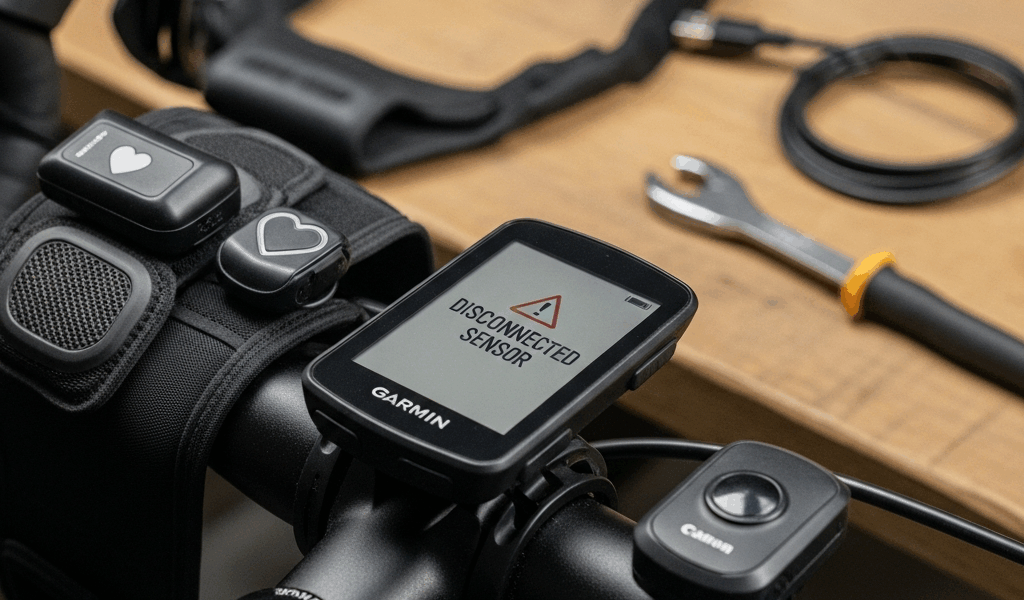
Why the Edge 540 Loses Sensor Connections
Sensor dropout on the Garmin Edge 540 has evolved with all the conflicting forum advice flying around.
Here’s the short version: it’s almost never the head unit itself. Three culprits show up again and again. Firmware updates that wipe or corrupt saved sensor profiles. ANT+ channel interference when you’re surrounded by other riders. Bluetooth conflicts when your phone app decides it wants the same sensor your Edge 540 needs. Different problems. Different fixes. Mixing them up wastes time you probably don’t have before a ride.
The firmware thing blindsided me last summer. Updated to the latest release, went out to the garage, spun the pedals — nothing. My Stages power meter, which I’d been running for three full seasons without a hiccup, had essentially ceased to exist for the device. The saved profile was still sitting there in the menu. But the Edge 540 refused to see the sensor. Turned out that specific firmware build had a documented bug with certain legacy ANT+ device IDs. One update. One wasted hour. Completely avoidable.
ANT+ channel bleed is sneakier about it. Ride in a peloton with fifteen other cyclists, all running ANT+ power meters and heart rate monitors, and your Edge 540 starts picking up signal noise from every direction. It gets confused about which device ID actually belongs to your sensor. Meanwhile, Bluetooth dropout has a completely different mechanism — the Garmin Connect app on your phone is broadcasting constantly, and a sensor in pairing mode will grab the first device that calls to it. That’s usually your phone, not your head unit. These aren’t the same fix.
Check This First Before You Do Anything Else
This is the piece to know up front. Before you delete profiles or start resetting channels, run through a three-minute check that eliminates roughly 40% of sensor problems before you do anything drastic.
- Swap in fresh batteries. CR2032 for most heart rate monitors. Whatever proprietary cell your power meter takes — check the manual. A dying battery sends a weak, inconsistent signal. The Edge 540 reads that as a dropout, not a low-battery warning. Side-step the error I made of spending forty minutes in the settings menu when a $2 battery from CVS would have fixed it.
- Check your distance from the device. Stand within 10 feet of the Edge 540. ANT+ technically reaches 30 feet in open air, but throw a metal workbench or a concrete wall into the equation and that range shrinks fast. Bluetooth is shorter — maybe 15 feet under decent conditions, less with interference.
- Find the sensor in your saved list. On the Edge 540: Settings → Sensors & Accessories → Sensors. Every paired device shows up here. Green checkmark means active. Gray circle means saved but not currently connected. That single detail — checkmark versus circle — tells you whether you’re dealing with a lost connection or a device that was never properly paired to begin with.
Sensor in the list but showing inactive? You’re probably looking at a quick fix. Sensor missing from the list entirely? You’re starting from scratch with a full re-pair. These paths diverge significantly, so get clear on which one you’re in before moving forward.
How to Fix ANT+ Sensor Pairing on the Edge 540
But what is ANT+? In essence, it’s the standard wireless protocol that connects cycling sensors — power meters, speed and cadence sensors, most older heart rate monitors — to your head unit. But it’s much more than that. It’s also the protocol most vulnerable to firmware interference and crowded radio environments. So, without further ado, let’s dive in.
Start with a clean delete and re-add:
- Go to Settings → Sensors & Accessories → Sensors.
- Select the sensor that’s giving you trouble. Choose Delete.
- Power the sensor off completely. For heart rate monitors and speed sensors, pull the battery for a full 30 seconds. For power meters, use the menu on the crank arm — the Stages Gen 3, for example, has a dedicated power-off sequence through a button hold.
- Go back to Sensors & Accessories and select Add Sensor.
- Wake the ANT+ sensor — move it, press a button, spin a crank. Whatever gets it broadcasting.
- The Edge 540 searches for 30 seconds. Let it run the full cycle and complete the pair before touching anything.
Clean re-pair and it’s working? Done. Still nothing? Check for duplicate device IDs. This trips people up more than almost anything else. If you’ve ever run both a Garmin power meter and a Wahoo POWRLINK simultaneously — or even owned them at different times on the same device — both might be registered as “Power Meter” in your sensor list. The Edge 540 gets confused about which ID to actually use.
The fix: delete every instance of that sensor type from the list. All of them. Then add them back individually, powering off whichever sensors you’re not actively pairing until the first one is confirmed connected. Tedious. Works every time.
One more ANT+ scenario worth flagging — the peloton problem. If your power meter works perfectly on solo rides but drops constantly in group rides, you’re dealing with ANT+ channel bleed. Other riders’ devices are flooding the same frequency band, and your Edge 540 is picking up the noise. There’s no clean software fix for this. You can adjust the channel timeout under Settings → Sensors & Accessories → ANT+ settings, which sometimes helps at the margins. But honestly, if it’s a consistent issue, the more practical move is switching to Bluetooth-capable sensors for group rides — different radio frequency bands, much less susceptible to that kind of interference.
How to Fix Bluetooth Sensor Pairing on the Edge 540
Bluetooth sensors create a specific category of headache — especially dual-mode heart rate monitors that speak both ANT+ and Bluetooth. The Garmin HRM-Pro Plus is the classic example. I’m apparently the kind of person who needs everything connected to everything, and the HRM-Pro Plus works for me while the older HRM-Tri never quite did. But the dual-mode capability comes with a tradeoff: your phone app and your head unit are competing for the same connection.
The fix requires unpair order discipline — and skipping any step in the sequence usually sends you back to square one:
- Open the Garmin Connect app on your phone.
- Navigate to Settings → Devices → find the Bluetooth sensor in question.
- Tap Disconnect or Forget Device. Exact label depends on your app version.
- Close the app completely. Not minimized. Fully closed — swipe it out of your recent apps.
- On the Edge 540: Settings → Sensors & Accessories → Sensors. Delete the sensor from the list.
- Enable Airplane Mode on your phone. Leave it on for two full minutes.
- On the Edge 540, add the sensor again while your phone is sitting silently in Airplane Mode.
- Once the Edge 540 confirms the pair, disable Airplane Mode and re-pair through the app if you need the phone connection too.
The Airplane Mode step looks excessive until you understand what’s actually happening. Your phone broadcasts its presence constantly — even when the Garmin Connect app is closed. A Bluetooth sensor in pairing mode latches onto the first device that calls to it. That’s almost always the phone, because it’s louder and faster to respond than the head unit. Airplane Mode silences the phone entirely. Now the sensor has exactly one option.
Some chest straps — particularly Garmin’s own HRM lineup — will actively prioritize the phone app over the head unit, even after both devices are paired and confirmed. That’s a design decision, not a malfunction. Three ways around it: disable Bluetooth on your phone before you start a ride, switch to an ANT+-only sensor that doesn’t have a Bluetooth mode to compete with, or accept that the phone gets priority and pull your ride data from the head unit afterward. None of those options are perfect. Pick the one that annoys you least.
Still Not Working — Try This
You’ve deleted. Re-paired. Killed Bluetooth on the phone. Swapped the battery. The sensor still won’t connect to the Edge 540.
Check your firmware version first. Settings → System → About → Software Version. Write that number down. Then plug the Edge 540 into your computer via USB — the included cable, not a random one from a drawer — open Garmin Express, and check for updates. Install whatever’s available. Restart the device. Try pairing again.
If the sensor pairs cleanly with a friend’s Edge 1040 or Edge 840 but won’t touch your 540, the sensor profile on your specific device is corrupt. Go to Settings → Sensors & Accessories and look for a Factory Reset option scoped to that sensor type. Not all sensors support this — Garmin’s own sensors usually do, third-party sensors sometimes don’t. Use it if it’s there.
Last resort — and this matters for figuring out where to direct your frustration. Borrow a different head unit. Edge, Wahoo, doesn’t matter. Five minutes with a friend’s bike computer tells you everything. If the sensor won’t pair with any device, the sensor itself has a hardware fault. RMA it to the manufacturer. That was the answer all along. But if it pairs immediately with another head unit, you have an Edge 540-specific compatibility issue — contact Garmin support directly, and lead with your firmware version number and the exact sensor model. They’ll ask for both anyway. Save yourself the back-and-forth.


Stay in the loop
Get the latest cycle train central updates delivered to your inbox.