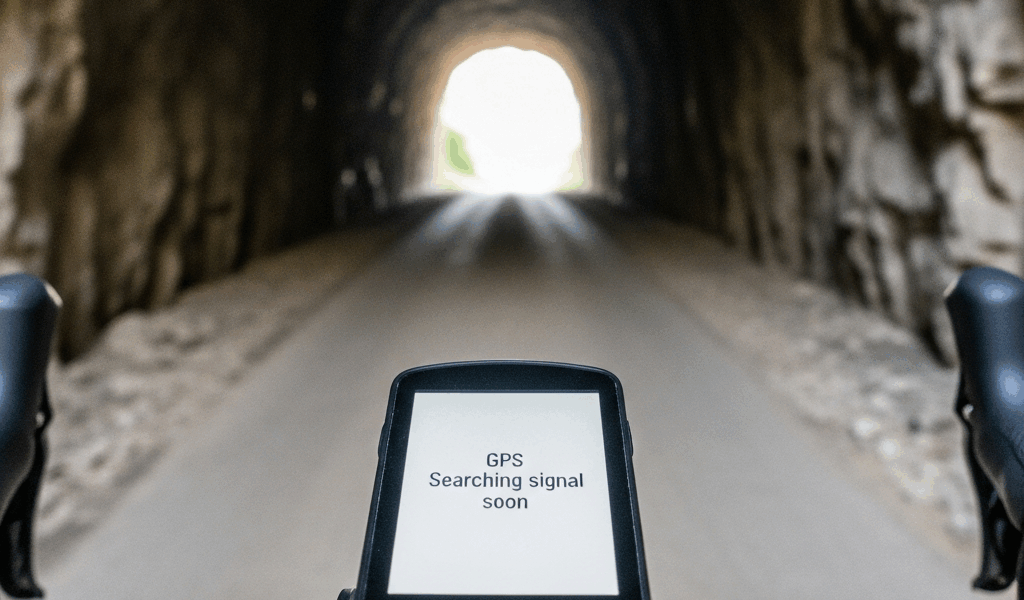
Why the Garmin Edge 540 Struggles to Lock GPS
GPS troubleshooting has gotten complicated with all the conflicting advice flying around. As someone who has spent way too many frustrated mornings staring at an “Acquiring…” screen before a 6 a.m. ride, I learned everything there is to know about the Edge 540’s signal quirks. Today, I will share it all with you.
Here’s the short version: the device probably isn’t broken. The 540 caches satellite almanac data — and that data goes stale after a few weeks without a sync. When it’s stale, acquisition slows to a crawl. On top of that, the unit ships in GPS-only mode by default. That’s like handing someone a radio locked to AM when FM has the clearer signal. Two quirks, one maddening symptom.
That’s what makes this device endearing to us cycling nerds — it’s genuinely excellent hardware undermined by out-of-box settings nobody tells you to change. So, without further ado, let’s dive in.
Fix 1 — Force a GPS Data Refresh With a Full Reset
Probably should have opened with this section, honestly. Clear the GPS cache first. That forces the 540 to pull a fresh almanac file the next time it syncs with Garmin Connect. Here’s the exact path:
- Press the Menu button (upper left)
- Tap Settings
- Tap System
- Tap Data Management
- Tap Clear GPS
- Confirm the reset
Don’t expect instant results after you tap confirm. The 540 needs open sky — and I mean genuinely open, not a covered porch or a parking garage entrance. A proper parking lot works. So does a park. Set the device on a flat surface and walk away for 10 to 15 minutes. No walking it around. No shaking it. Just leave it.
Most people skip that outdoor wait and assume the reset failed. Then they run it three more times and end up in Garmin’s support forums convinced the hardware is defective. Don’t make my mistake. Give it the full 15 minutes.
Once it acquires, sync to Garmin Connect — either through the companion app or a USB cable plugged into your computer. That sync pulls down fresh satellite position data the 540 will actually use on your next ride. First lock after this process is noticeably faster. Usually under 90 seconds in my experience.
Fix 2 — Switch to Multi-Band and All Satellite Systems
But what is GPS-only mode, exactly? In essence, it’s the 540 searching a single satellite constellation — American GPS — while ignoring GLONASS, Galileo, and BeiDou entirely. But it’s much more than a minor limitation. In urban areas or on routes with tree cover, that restricted search is why signal drops and takes forever to return.
To change it:
- Press Menu
- Tap Activity Profiles
- Select the profile you ride most (Road, MTB, Gravel, etc.)
- Tap GPS
- Change Satellite System to All Systems
- Change Positioning Mode to Multi-Band
- Save and exit
All Systems pulls from four constellations simultaneously. Multi-Band uses dual-frequency signals — L1 and L5 — which cuts through atmospheric interference and the reflection noise you get riding between buildings. The combination is what you want for reliable tracking.
Yes, battery takes a hit. Figure 5 to 10 percent more drain over a long ride compared to GPS-only. On an 8-hour gravel adventure, that’s real — but the 540 is rated for 15 hours, so you’re still in comfortable territory even at the high end of that estimate.
I’m apparently someone who obsesses over battery percentages, and GPS-only mode worked for me in theory while multi-band never seemed worth the tradeoff. Then I lost signal twice on a 2-hour Saturday ride — same section of tree-lined road both times — and switched that afternoon. Haven’t touched the setting since.
Fix 3 — Update Firmware and Sync Satellite Data via Garmin Connect
Firmware updates on the 540 occasionally include GPS acquisition improvements. Worth checking before you assume the first two fixes are enough. Here’s how to find your current version:
- Press Menu
- Tap Settings
- Tap About
- Look for Software Version
Write that number down. Head to Garmin’s support site, search “Edge 540 firmware,” and compare. If you’re behind by even one version, update it.
The easiest path is the Garmin Connect app. Plug the 540 into your phone via USB, open the app, and let it handle everything over Wi-Fi. That process also downloads satellite ephemeris data — essentially a three-day forecast of where every satellite will be sitting. Pre-loaded ephemeris data is why a freshly synced 540 locks in under 30 seconds instead of sitting there for five minutes.
While you won’t need to do this daily, you will need a regular sync habit — at least once a week if you ride frequently. Users who only sync when Garmin sends a notification are basically asking the device to locate satellites it has no recent data on. That’s not a hardware problem. It’s a maintenance gap.
If the app sync keeps stalling, grab a USB-C cable and run Garmin Express on a Windows or Mac machine instead. Wired updates through Express are rock solid. The Bluetooth handoff in the app occasionally drops mid-transfer — frustrating but fixable.
When GPS Issues on the 540 Are Actually a Hardware Problem
After the cache reset, the constellation switch, and a fresh firmware sync — signal should lock fast and stay locked. If it doesn’t, hardware failure becomes worth considering.
Real antenna or chipset problems follow recognizable patterns. The unit never acquires a signal at all, even after 30 minutes in wide-open sky. Or it locks fine but cuts out at one specific location on every single ride — same corner, same underpass, regardless of weather or time. Consistent, location-independent failure points to a damaged antenna. Consistent, location-specific failure is usually just terrain.
Frustrated by a 540 that failed every test? Contact Garmin warranty support with your serial number and a clear description. In-warranty repairs or replacements move quickly in my experience. Out-of-warranty antenna replacements typically run $150 to $200 — not cheap, but cheaper than a new unit.
That said, genuine hardware defects are the exception. Nine out of ten GPS complaints on the Edge 540 trace back to stale cache data, restrictive satellite settings, or an outdated firmware build. Run the fixes in order. Start with the cache reset. Move to multi-band. Then sync. Most of you won’t make it past step two.



Stay in the loop
Get the latest cycle train central updates delivered to your inbox.